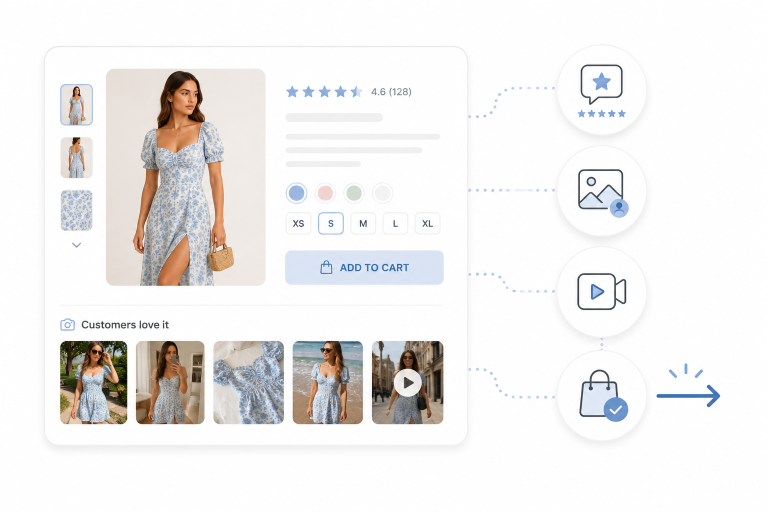
Quick Summary
To add Instagram photos to Shopify product pages, you can use a Shopify Instagram feed app, embed approved Instagram posts manually, add a custom gallery section to your product template, or use a UGC platform that collects Instagram content and maps it to specific products. For most ecommerce brands, the easiest option is a Shopify app or UGC platform that lets you connect an Instagram account, approve photos, request usage rights, tag products, and display product-specific galleries on PDPs.
The technical answer is simple. You can install an Instagram feed app from the Shopify App Store, add an app block to your product page template, and publish a gallery. But the strategic answer is more important: Instagram photos should not be added to a Shopify product page just because they look good. They should help shoppers feel more confident about the product they are considering.
That distinction matters because Instagram content can either support conversion or distract from it. A generic instagram feed on every product page may add brand energy, but it does not always help the shopper decide. A product-specific gallery showing real customers wearing, styling, using, or reviewing the exact product can reduce doubt and support PDP optimization. That is the difference between an Instagram widget and conversion content.
For experienced ecommerce leaders, the real goal is not simply “how to add instagram photos to shopify.” The goal is to turn Instagram posts, reels, shoppable videos, and user-generated content into social proof that improves the product page conversion rate, add-to-cart rate, customer trust, and the ROI of shoppable content. This is where platforms like Foursixty have become important in social commerce because they help brands connect shoppable content, shoppable posts, shoppable social, rights management, product tagging, and UGC for PDP conversions into one operating system.
The 4 Ways to Add Instagram Photos to Shopify Product Pages
There are four practical ways to add Instagram photos to Shopify product pages: use a Shopify Instagram feed app, use a UGC or reviews platform, manually embed Instagram posts, or build a custom Shopify theme section. Each method works, but they solve different problems. A small store that wants to show a few selected Instagram posts may be fine with manual embeds. A fast-growing fashion, beauty, lifestyle, or home brand usually needs moderation, rights management, product tagging, and analytics.
| Method | Best For | Difficulty | Notes |
| Shopify Instagram feed app | Most merchants | Easy | Fastest no-code option |
| UGC or reviews platform | Brands using customer photos at scale | Easy to medium | Better for permissions, tagging, moderation, and product-specific galleries |
| Manual Instagram embeds | A few specific posts | Easy | Simple but less scalable |
| Custom Shopify theme section | Custom storefronts | Medium to advanced | More control, but requires theme editing or development support |
This choice should follow your business problem. If you only want an instagram feed on the homepage or Shopify home page, a simple Instafeed-style app may be enough. If you want Instagram photos on product pages, especially product-specific UGC, a more robust UGC platform is usually better. If you want to connect Instagram monetization, shoppable instagram feeds, shoppable ads, shoppable videos, and PDP content, you need a setup that can do more than embed a feed.
Shopify’s own social commerce documentation explains that social commerce sales channels let merchants sell through platforms such as Facebook, Instagram, TikTok, and Roblox. Shopify also provides setup documentation for Facebook and Instagram by Meta, including connecting accounts and sales channels. Those official resources are useful for the catalogue and channel setup side, but they are not the same as building a high-converting Instagram UGC experience on a product detail page.
Recommended Method: Use a Shopify Instagram or UGC App
The simplest way to add Instagram photos to Shopify product pages is to install an Instagram feed, social proof, or UGC gallery app from the Shopify App Store. These apps typically let you connect your Instagram account, choose a source of photos, approve content, and add a gallery block or embed code to your Shopify product page. Some tools focus on simple feeds, while more advanced UGC platforms support shoppable content, product tagging, rights management, moderation, and analytics.
A practical no-code process looks like this:
- Open your Shopify admin.
- Go to Apps or the Shopify App Store.
- Search for an Instagram feed, instafeed, social proof, or UGC gallery app.
- Install the app and connect your Instagram account.
- Choose the source of photos, such as your profile, tagged posts, hashtags, mentions, approved UGC, or product-specific content.
- Moderate the photos before publishing.
- Tag products to the correct Shopify products or SKUs.
- Add the app block or embed code to your product page template.
- Preview the product page on desktop and mobile.
- Publish once the gallery loads correctly and supports the buying journey.
The most important strategic step is product relevance. A Shopify product page for a black linen blazer should not show a generic brand Instagram feed full of unrelated lifestyle posts. It should show the exact blazer, ideally in the selected colour or variant, worn or styled by real customers. That is what turns Instagram content into ecommerce trust signals.
For brands evaluating social commerce platforms, the tool choice should depend on scale and intent. A basic Instagram widget may help with brand awareness on a homepage or landing pages. A more advanced UGC platform is better when the goal is UGC for PDP conversions, visual merchandising, rights management, shoppable posts, and measurable revenue impact. Foursixty fits this second category, especially for brands that want to connect Instagram content directly to Shopify product pages and make the content shoppable.
How to Add Instagram Photos to a Shopify Product Page Template
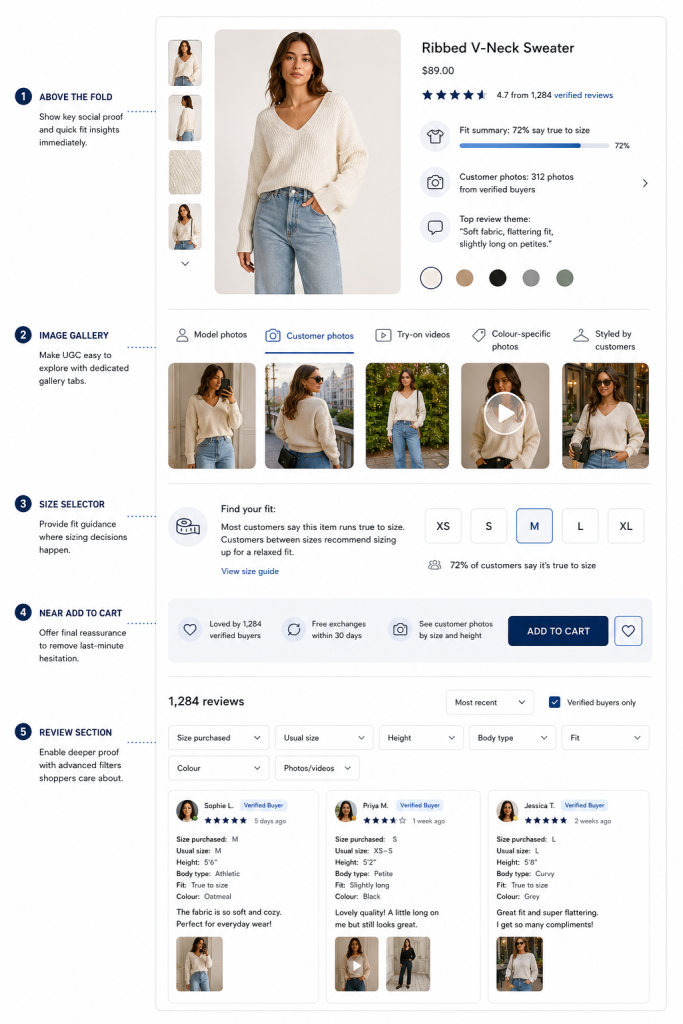
Once the Instagram or UGC app is installed, the next decision is where the gallery belongs on the PDP. Placement matters because Instagram photos can either support the shopper’s decision or interrupt it. If the gallery appears too low, shoppers may never see it. If it appears too high but is irrelevant, it may distract from the call-to-action. The best placement depends on what the content proves.
A useful placement model looks like this:
| PDP Location | Best Instagram Content | Why It Helps |
| Below product images | Customer photos wearing or using the product | Adds visual proof early |
| Near product description | Lifestyle posts showing use cases | Supports product claims |
| Near size or colour selector | Variant-specific photos | Helps shoppers choose correctly |
| Before reviews | Social UGC gallery | Builds trust before deeper evaluation |
| Near “complete the look” | Outfit or styling posts | Encourages cross-sells |
| Lower on page | Full Instagram gallery | Adds inspiration without distracting from purchase |
For ecommerce conversion, the best placement is usually below the main product gallery or near the add-to-cart section, especially when the Instagram photos show real customers using the exact product. For fashion pdps, this can mean customer photos by size, height, colour, or styling context. For beauty, it may mean shade-specific photos or reels showing texture. For home products, it may mean customer photos showing scale, room placement, and styling.
What breaks when placement is wrong is momentum. If a shopper is considering a product but has to scroll past unrelated content before reaching the “add to cart” or “buy now” button, the gallery becomes frictionless. If the gallery is buried after long product descriptions, reviews, and recommendations, the content may not influence the buying decision. Good PDP optimization places visual proof where confidence is needed.
Option 2: Manually Embed Instagram Posts on Shopify
Manual embeds are useful when you only want to display a few specific Instagram posts. Instagram’s Help Center says that public Instagram posts, reels, guides, or profiles can be embedded on websites, blogs, or articles. Meta’s Instagram oEmbed documentation also points developers to Instagram’s embed process for public posts and profiles. This method is simple, but it is not usually the best choice for a large product catalogue.
A manual embed process usually looks like this:
- Open the Instagram post or reel.
- Use Instagram’s embed option where available.
- Copy the embed code.
- In Shopify admin, open the relevant product, product template, custom liquid block, HTML section, or theme section.
- Paste the embed code.
- Save and preview the page.
- Test the page on desktop and mobile.
Manual embeds can work for editorial pages, blog posts, landing pages, or small campaigns. They are less useful for brands that need product-specific UGC across many SKUs. Embedded posts can disappear if the original post is deleted, made private, or restricted. Layout control can also be limited, and embedded content may affect page speed.
The biggest limitation is that manual embeds rarely map cleanly to product variants. If you sell the same dress in six colours, a manually embedded post may not change when the shopper selects a different variant. That can create confusion if the customer sees one colour in the Instagram post and another in the selected product. For scalable ecommerce, product tagging and variant relevance are usually worth the extra system investment.
Option 3: Add a Custom Instagram Gallery Section
For more advanced Shopify storefronts, a custom theme section can give the brand more control over design, page speed, SEO, and product relevance. Instead of embedding live Instagram posts directly, the brand can upload approved Instagram or UGC images into Shopify, attach them to product metafields, and display them in a custom gallery on the product page. This approach often requires developer support, but it can be cleaner and faster than relying on third-party embeds.
A custom section might include:
- A gallery heading such as “Styled by Customers”
- Image cards uploaded through Shopify
- Product-specific Instagram image URLs
- Alt text fields
- Optional customer handle or attribution
- Links to the original Instagram posts where appropriate
- Variant-specific image grouping
- Product tagging
- Lazy loading for lower-page galleries
- Mobile-friendly carousels
This approach is useful because it gives the brand more control over the experience. The gallery can match the theme, load efficiently, and use native Shopify-hosted images with descriptive alt text. It also allows the brand to avoid showing the same generic instagram feed on every PDP. The tradeoff is operational overhead. Someone still needs to collect, approve, tag, update, and remove content when needed.
For enterprise and high-growth ecommerce teams, the decision often comes down to control versus workflow. Custom development can produce an excellent experience, but it does not automatically solve moderation, rights management, or content sourcing. A UGC platform can solve those operational problems faster, while custom development can refine the presentation layer. The strongest setups often combine both: a platform for UGC operations and a custom PDP experience for merchandising.
Use Instagram Photos as UGC, Not Decoration
Instagram photos work best on Shopify product pages when they help the shopper make a purchase decision. A gallery should answer questions that product photography, product descriptions, and reviews cannot fully answer alone. What does the product look like in real life? How do customers style it? What does the colour look like outside studio lighting? Does the item fit different body types? What does the product look like in a real home, gym, vanity, vacation setting, or everyday routine?
Good Instagram photo use includes:
- Showing the exact product
- Showing the product on real customers
- Showing fit, scale, size, colour, texture, or styling
- Matching the selected product variant
- Including permission or attribution
- Being moderated for quality and relevance
- Supporting “shop the look” or product tagging
- Connecting Instagram posts to PDP content
Weak Instagram photo use includes:
- Showing unrelated lifestyle content
- Using influencer photos without disclosure
- Showing products that are no longer available
- Displaying photos that do not match the selected variant
- Using overly edited images that misrepresent colour or fit
- Slowing down the product page
- Placing the gallery so low that shoppers never see it
- Treating UGC marketing as decoration instead of conversion content
This distinction matters for product page conversion rate. A generic Instagram widget may create brand atmosphere, but it may not increase customer confidence. Product-specific visual UGC can reduce product page bounce because it gives shoppers a reason to keep evaluating. The shopper is no longer looking only at brand-controlled imagery; they are seeing real customers, real styling, and real use.
Permission, Rights, and Disclosure: Do You Need Permission to Use Instagram Photos on Shopify?
Yes, stores should get permission before using customer or creator Instagram photos on Shopify product pages. A public Instagram post does not automatically mean a brand has the right to reuse it commercially on an ecommerce product page. This is one of the most important trust and compliance issues in UGC strategy.
A responsible process should include:
- Request usage rights before publishing customer photos.
- Keep records of approvals.
- Credit the creator if agreed.
- Disclose sponsored, gifted, or incentivized content.
- Remove content if a creator withdraws permission.
- Avoid using photos of minors or sensitive contexts without explicit consent.
- Do not alter UGC in a misleading way.
- Moderate content for brand safety and relevance.
- Document usage rights by channel, campaign, and product.
FTC guidance on endorsements and testimonials is relevant because paid, gifted, or incentivized content must not mislead consumers. The FTC also provides guidance around consumer reviews and testimonials, including deceptive review practices. For ecommerce teams, this means Instagram UGC should be governed like a real business asset, not treated as free creative pulled from social media.
This is where rights management becomes a major reason to use a UGC platform rather than manual embeds. As a brand grows, the number of customer photos, reels, mentions, hashtags, creators, and permissions can become difficult to manage manually. A platform such as Foursixty can help brands collect, approve, tag, and display UGC while keeping the content connected to products and shopping moments.
Product-Specific Instagram Gallery Template for Shopify PDPs
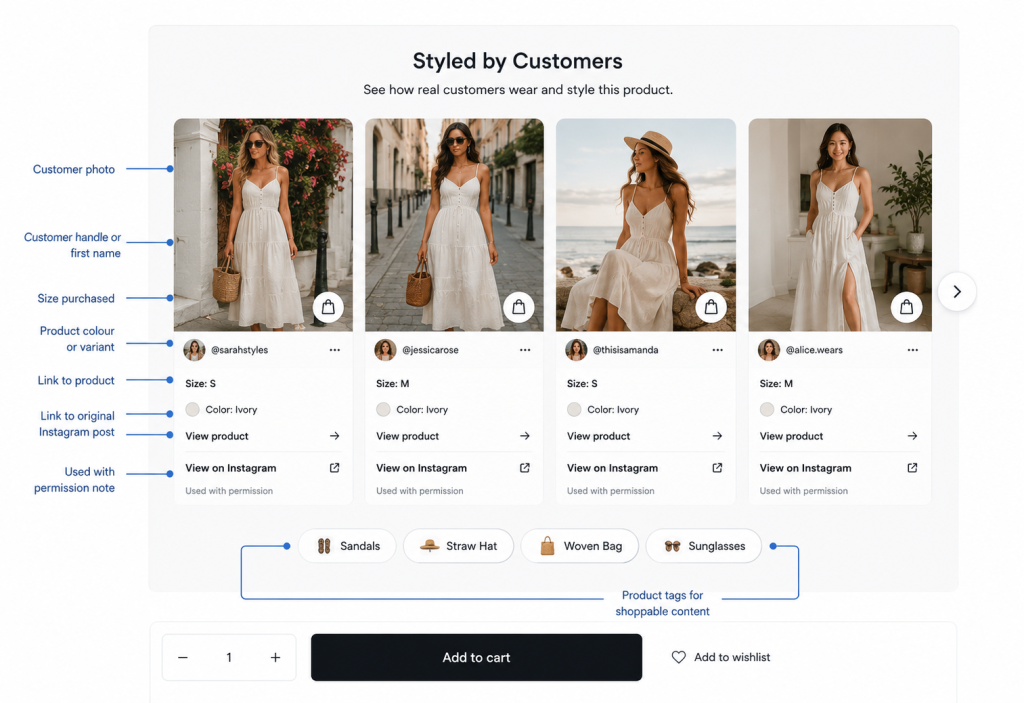
A product-specific Instagram gallery should feel like part of the buying experience, not an afterthought. The copy should explain why the gallery exists and how it helps the shopper. The gallery should also include enough context to make the images useful: product variant, size, shade, customer handle where permitted, and links to shop the featured items.
A simple module might look like this:
Styled by Customers
See how real customers wear and style this product.
Gallery card fields:
- Customer photo
- Customer handle or first name, where permitted
- Size purchased, if relevant
- Product colour or variant
- Link to product
- Link to original Instagram post, where appropriate
- “Used with permission” note, where appropriate
- Product tags for shoppable content
Example PDP copy for fashion products:
“Styled by real customers. View Instagram photos from shoppers wearing the [Product Name] in [Colour/Variant]. See this dress on customers by size, height, and colour.”
Example PDP copy for home products:
“See how customers style this table in real homes.”
Example PDP copy for beauty products:
“See customer photos by shade and skin tone.”
This structure works because it makes the gallery useful. It gives the shopper context, not just imagery. It also reinforces trust by showing that the content is used with permission and tied to real product usage.
How Shoppable Instagram Feeds Support Conversion
Shoppable instagram feeds help bridge the gap between social discovery and purchase. A customer may discover a product through Instagram reels, hashtags, mentions, influencer posts, creator content, or brand social media posts. But discovery alone does not equal revenue. The shopper still needs a clear path from inspiration to product evaluation and checkout.
Shopify’s social commerce documentation explains that social commerce allows merchants to sell products directly on platforms such as Facebook, Instagram, TikTok, and Roblox. Shopify also notes that, after Instagram Shopping approval and Meta catalog setup, merchants can tag products in Instagram posts and stories. For Shopify brands, this creates a path from social content to product discovery, but the PDP still needs to convert that interest.
This is why the best brands do not only link Shopify to Instagram. They connect Instagram content back into the Shopify website. Shoppable posts on Instagram help with discovery, while shoppable instagram feeds on PDPs help with confidence. When a customer sees the same product styled by real customers on the product page, the experience feels continuous.
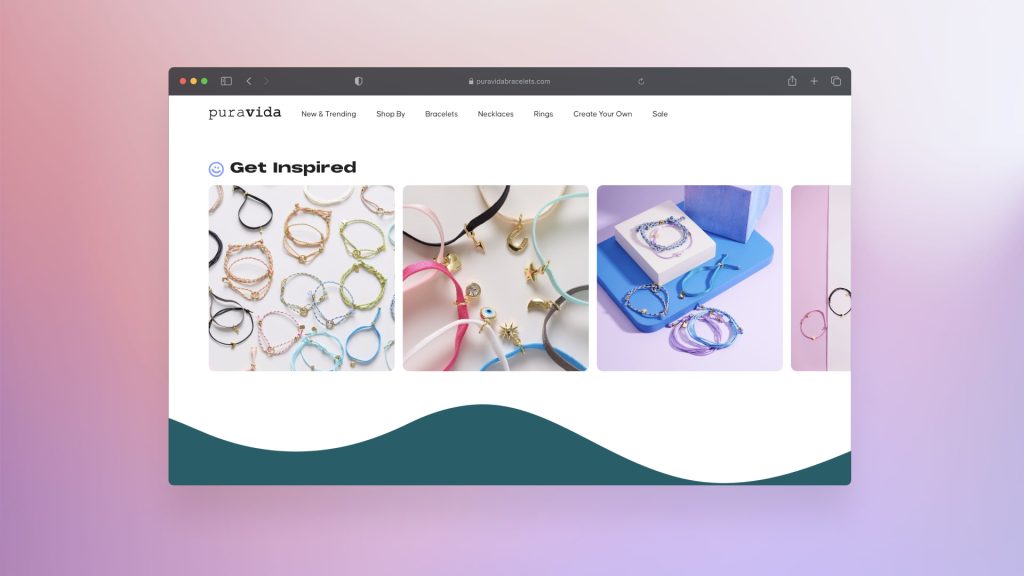
Pura Vida is a useful example. With Foursixty, Pura Vida integrated shoppable galleries across homepage, product page, email, and mobile shopping experiences. Users who interacted with Foursixty’s shoppable photos clicked through to the point of sale at an 18.2% rate, page views increased by 73%, bounce rate decreased by 34%, and 17% of online revenue was generated through Foursixty engagement. That is the difference between Instagram as a brand channel and Instagram as conversion infrastructure.
See more about Pura Vida’s success with Foursixty
Mini-Case Narrative: Frankies Bikinis
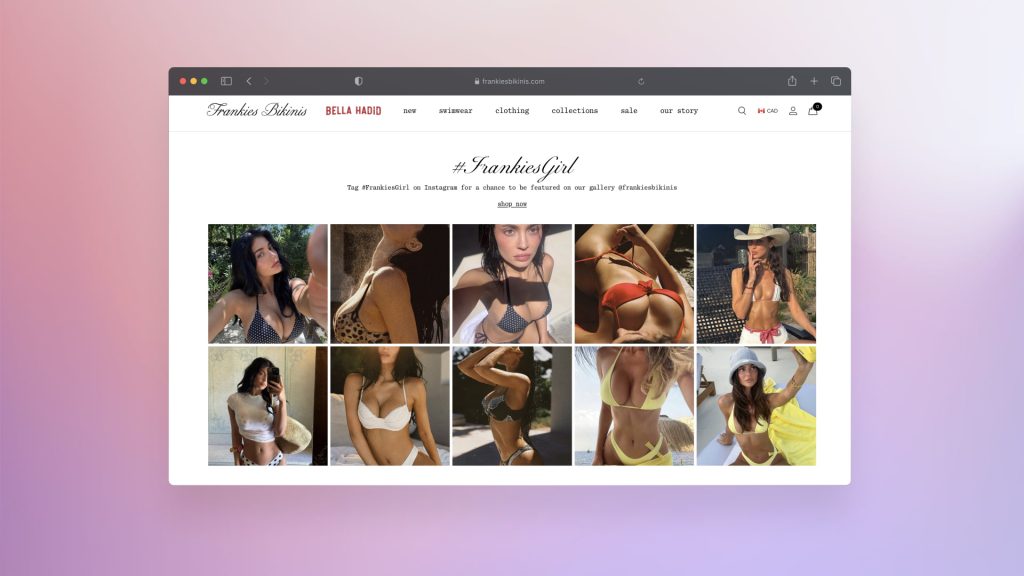
Frankies Bikinis shows how Instagram content can influence product page performance in a visual category. Swimwear shoppers want to understand fit, body confidence, colour, proportions, and styling. Studio photography creates desire, but many customers still need to see the product in real customer contexts before buying.
Frankies Bikinis used Foursixty to power shoppable Instagram content across its site. Founder Francesca Aiello placed top-performing UGC in key locations so shoppers could see products in real life and move directly toward purchase. The result was significant: 19% of total orders and more than 23% of online revenue were driven by Foursixty.
The lesson is that Instagram photos on Shopify product pages should not be treated as generic social proof. They should be product-specific, shoppable, and connected to the customer’s decision. For fashion PDPs, that often means showing real customers wearing the product, matching content by variant, and making the full look easy to shop.
See more about Frankies success with Foursixty
SEO and UX Best Practices for Instagram Photos on Shopify
Instagram photos can improve trust, but they can also create SEO and UX issues if implemented poorly. Embedded posts may not provide the same SEO value as native page content. Heavy scripts can slow down the page. Generic galleries can dilute product relevance. Poor mobile layouts can interrupt the add-to-cart flow.
Practical SEO and UX guidance:
- Use descriptive alt text for images hosted on Shopify.
- Avoid relying only on embedded Instagram posts for important PDP content.
- Compress images to protect page speed.
- Lazy-load galleries lower on the page.
- Add captions that explain the product and use case.
- Make galleries mobile-friendly.
- Do not block the add-to-cart flow with heavy social widgets.
- Use product-specific galleries instead of the same generic feed on every PDP.
- Test gallery placement on desktop and mobile.
- Keep unavailable products out of shoppable galleries.
Good alt text is specific. “Customer wearing black linen blazer with white jeans” is better than “Instagram photo 1.” It gives the image meaning and supports accessibility. It also helps the PDP feel more product-specific.
The main UX principle is restraint. Instagram content should support the product page, not take it over. A gallery that improves confidence is valuable. A gallery that slows the PDP, pushes the call-to-action down, or shows irrelevant content can reduce conversion rates.
Common Mistakes When Adding Instagram Photos to Shopify
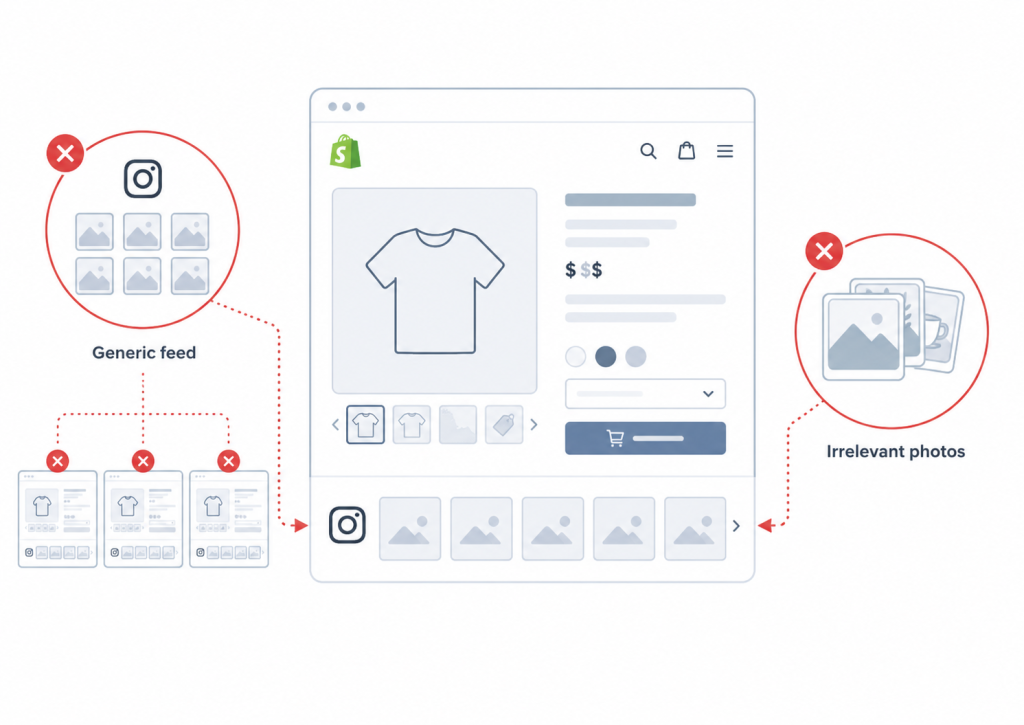
Many Shopify stores add Instagram photos in a way that looks visually active but does not support the buying decision. The most common mistake is adding a generic Instagram feed to every product page. That can work on a homepage, but PDPs need relevance. A customer looking at a specific product wants to see that product, not a random brand feed.
Common mistakes include:
- Adding a generic Instagram feed to every product page
- Showing photos that do not include the product
- Using customer photos without permission
- Not disclosing sponsored or gifted posts
- Letting the gallery slow down the PDP
- Placing UGC so low that shoppers never see it
- Showing outdated or unavailable products
- Not matching photos to product variants
- Using low-quality or heavily filtered images
- Forgetting mobile layout testing
- Using Instagram photos as decoration instead of purchase support
- Failing to tag products inside shoppable posts
- Treating homepage social proof and PDP conversion content as the same thing
The deeper mistake is not having a UGC strategy. Instagram content can support brand awareness, Instagram monetization, Tiktok monetization, social shopping, shoppable ads, and PDP conversion, but each use case needs a different implementation. A Shopify home page feed may tell the brand story. A product page gallery should help the shopper decide. A landing page gallery may support campaign trust. A shoppable ad needs a direct path to product purchase.
How AI for PDPs Fits Into Instagram UGC
AI for PDPs can help ecommerce teams organize, tag, and summarize Instagram UGC, but it should not replace human judgment. AI can help identify which photos include which products, suggest alt text, summarize review themes, detect duplicate content, and classify visual assets by colour, category, or use case. It can also help build a CRO checklist for ecommerce managers by identifying missing proof on high-traffic PDPs.
But AI should not invent customer experiences or fabricate social proof. The value of UGC marketing comes from real people, real photos, real posts, and real product usage. If AI-generated content begins to blur that line, it can weaken trust. The best use of AI is operational: making real UGC easier to manage, not replacing it.
For brands that use UGC at scale, AI can help surface the right content for the right product page. For example, it might help identify customer photos that match a selected colour, detect whether a post includes a relevant product, or generate draft captions from approved content. Human teams still need to verify permissions, relevance, brand safety, and accuracy.
Final Takeaway
Adding Instagram photos to Shopify product pages is easy. Adding them in a way that improves ecommerce performance takes more strategy. The best Shopify brands do not simply paste a generic instagram feed into every PDP. They collect approved UGC, tag products, match content to variants, place photos near key decision points, and measure whether visual social proof improves add-to-cart rate, product page conversion rate, bounce rates, and revenue.
For small stores, a Shopify Instagram feed app or manual embed may be enough. For growing brands, especially in fashion, beauty, home, and lifestyle categories, a UGC platform can provide the rights management, moderation, product tagging, and shoppable content features needed to scale. Foursixty’s case studies show the commercial upside: Pura Vida generated 17% of online revenue through Foursixty engagement, Frankies Bikinis drove 19% of orders and more than 23% of online revenue through Foursixty, and MICHI generated a 51x ROI within 30 days.
The future of Instagram on Shopify is not just embedding photos. It is turning social proof into product-page confidence.
FAQ
How do I add Instagram posts to Shopify?
You can add Instagram posts to Shopify by using an Instagram feed app, a UGC platform, manual Instagram embeds, or a custom Shopify theme section. The easiest method is usually to install an app from the Shopify App Store, connect your Instagram account, choose the posts or feed source, and add the gallery block to your product page or homepage. For product pages, the best setup is product-specific: show Instagram posts that feature the exact product being viewed.
What are the most common Shopify mistakes to avoid?
The most common Shopify mistakes include using generic product pages, hiding shipping and return information, failing to optimize mobile UX, using slow apps, ignoring page speed, and adding social widgets that do not support conversion. For Instagram feeds specifically, the biggest mistakes are showing irrelevant photos, failing to get permission, placing galleries too low on the PDP, and not matching photos to product variants. A good Shopify website should use Instagram UGC as purchase support, not just decoration.
Is Shopify $40 a month?
Shopify pricing changes over time, so brands should check Shopify’s official pricing page for the most current plan details. Shopify has historically offered multiple plans at different price points depending on features, transaction fees, staff accounts, and reporting needs. The important strategic point is that the platform subscription is only one part of ecommerce cost; apps, payment processing, development, content, UGC platforms, and marketing strategies also affect total operating cost.
Can I connect Instagram to Shopify?
Yes, you can connect Instagram to Shopify through Facebook and Instagram by Meta in Shopify’s sales channels. Shopify’s documentation explains that merchants can add the Facebook and Instagram sales channel, connect accounts, and set up the integration. Once approved for Instagram Shopping and connected to a Meta product catalog, merchants can tag products in Instagram posts and stories.
Can I add an Instagram feed to Shopify?
Yes, you can add an Instagram feed to Shopify using an app, embed code, or custom theme section. Many merchants use an Instafeed-style app or Instagram widget to display recent posts on the homepage, product pages, or landing pages. For conversion, product-specific Instagram feeds are stronger than generic feeds because they show shoppers relevant social proof for the exact product they are considering.
Why should you add Instagram feed to Shopify website?
You should add an Instagram feed to a Shopify website when the content helps build trust, show real product usage, and connect social discovery to purchase. Instagram photos can increase customer confidence by showing products on real customers, in real homes, or in real styling contexts. The feed is most valuable when it supports product discovery, shoppable content, and PDP decision-making rather than simply filling space.
What does InstaFeed do on Shopify?
Instafeed-style Shopify apps typically let merchants display Instagram posts, reels, or feeds on their Shopify store. Depending on the app, the feed may show recent posts from an Instagram account, hashtag content, tagged posts, or curated galleries. Some apps are mostly visual widgets, while more advanced tools support UGC moderation, product tagging, shoppable instagram feeds, and analytics.
How To Add Instagram Posts To Google Sites For Free?
To add Instagram posts to Google Sites, you can usually use Instagram’s embed option for a public post and paste the embed code into an embed block on Google Sites. This is different from Shopify because Google Sites is not an ecommerce platform and does not have Shopify product pages, checkout, or product tagging. For ecommerce, Shopify apps and UGC platforms usually provide a more scalable solution than manual embeds.
How to monetize Instagram reels?
You can monetize Instagram reels through brand partnerships, affiliate links, creator programs where available, product tagging, traffic to a Shopify store, and shoppable social strategies. For ecommerce brands, the most relevant path is connecting reels to product discovery through Instagram Shopping, shoppable posts, shoppable ads, and product-specific landing pages or PDPs. The key is making sure the reel does not only create attention but also gives shoppers a clear path to purchase.
How can I embed my Instagram Reels feed on my website?
You can embed Instagram reels on a website by using Instagram’s embed option for public reels, an Instagram feed app, or a third-party widget that supports reels. On Shopify, most merchants use an app or UGC platform because it gives more control over design, moderation, and placement. For product pages, embedded reels should be relevant to the exact product and should not slow down the page or distract from the add-to-cart flow.
How do I integrate Instagram photos into my Shopify store?
You can integrate Instagram photos into your Shopify store by connecting Instagram through Shopify’s Facebook and Instagram by Meta sales channel, using a Shopify Instagram feed app, embedding posts manually, or using a UGC platform like Foursixty. The best method depends on whether you want a simple feed, a homepage gallery, product-specific UGC, shoppable posts, or a full social commerce system. For product pages, prioritize approved Instagram photos that show the exact product, support customer confidence, and can be tagged to Shopify products.